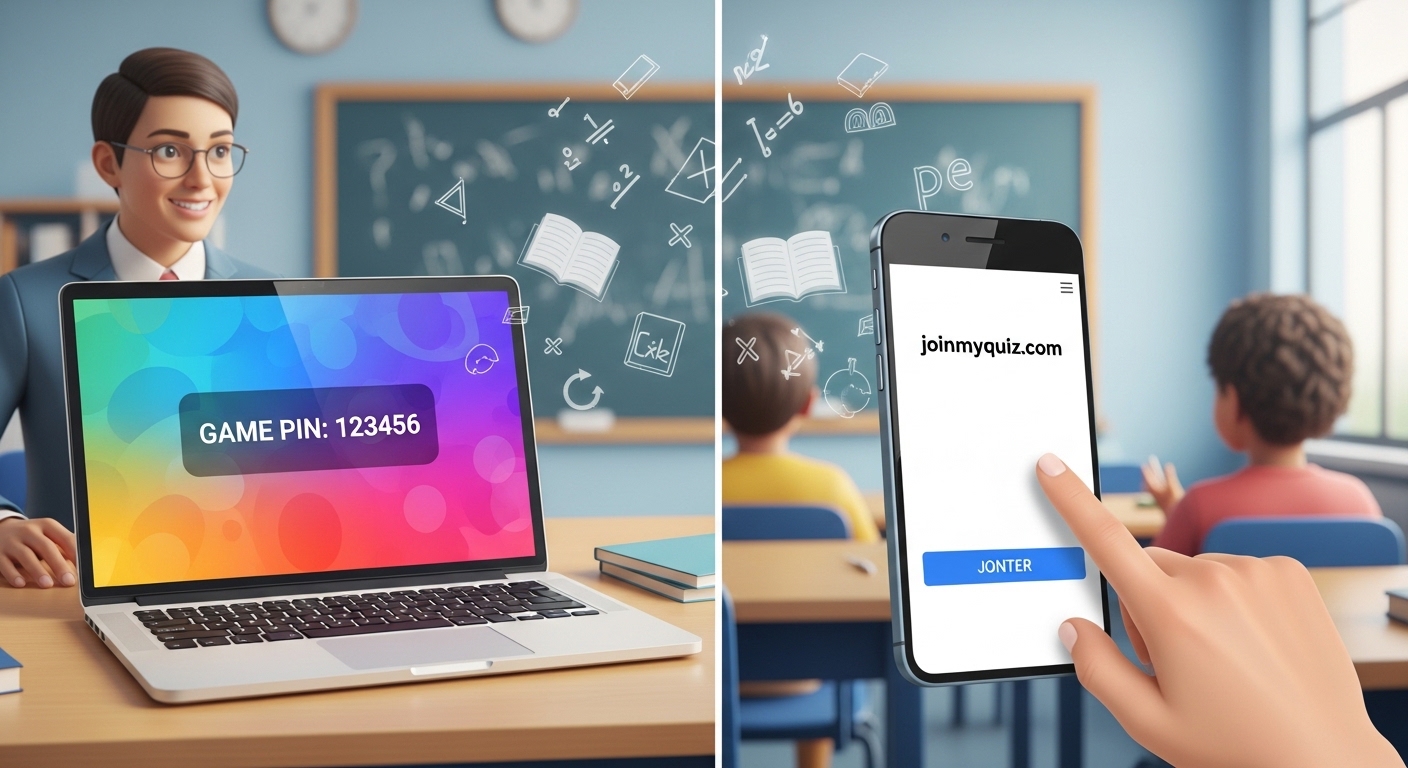
Ever sat in class, watched your teacher pull up a colorful game on the big screen, and then heard those five magic words: “Okay everyone, grab your phones and join my quiz.com”? A 6-digit code flashes on the board, and suddenly, your classmates are tapping away, ready to turn a review session into a friendly competition. In that moment, you just want to get in the game fast, answer some questions, and maybe see your name climb up that leaderboard.
That rush is exactly what gamified learning is all about, and join my quiz.com is your personal ticket to the action. This guide is designed to walk you through exactly how to use that code, whether you are in a classroom, a training session, or just having fun with friends. We will cover every step, troubleshoot the annoying hiccups, and share some pro tips so you can focus on what matters: showing what you know and having a blast doing it.
What Exactly is Join My Quiz.com?
Think of join my quiz.com as the digital doorway to Quizizz, one of the most popular interactive classroom tools out there. Instead of fumbling with long links or complicated logins, your teacher or host gives you a short, unique code. You head to this simple website, punch in that code, and boom—you are connected to the live game or assignment.
The beauty of this system is its simplicity. It is designed for speed and accessibility, working on almost anything with a screen and an internet connection—your school-issued Chromebook, your iPhone, a tablet, or a laptop. Because it is browser-based, you rarely need to download an app, making it one of the most frictionless ways to participate in synchronous learning or tackle a homework assignment. It’s a core part of modern student engagement software, transforming ordinary quizzes into multiplayer educational games.
How to Enter a Code on Join My Quiz.com: A 5-Step Walkthrough
Ready to jump in? The process of using a join my quiz.com student login is intentionally straightforward. Here is your game plan for getting from the lobby to those first quiz points.
Step 1: Get Your Game Code
Everything starts with this number. Your teacher or quiz host will provide a join code, which is usually a 6-digit number (like 853421 or 974036), though it can sometimes be 7 digits. You can find it in a few places:
- Projected on a screen: In a physical classroom, it will be front and center.
- In your LMS: For remote learning, check Google Classroom, Canvas, or Schoology for the code.
- In a chat: During a video call, it might be pinned in the Zoom or Teams chat.
Step 2: Open Your Browser and Navigate
Open your preferred web browser. In the address bar, type in the URL: joinmyquiz.com (or sometimes quizizz.com/join) and hit enter. This will take you directly to a clean, simple page with one main feature: a box asking for a code.
Step 3: Enter the Code
Carefully type the 6 or 7-digit code into the box. Double-check your digits! A 6 looks like a b, and an 8 is not a 3. Once you are sure it is correct, click the Join or Submit button.
Step 4: Enter Your Name
This is a big one. After the code is accepted, you will be prompted to enter your name. This is how your teacher and classmates will see you in the game.
- The Golden Rule: Use your real name. Your teacher likely has reports to run and needs to see that “Alex Chen” answered the question correctly, not “DragonSlayer99”. Sometimes, teachers will ask for a specific format, like “FirstName_LastInitial” or to include your class period. Pay attention to any instructions on the screen.
Step 5: Wait for the Game to Start
Once you’ve entered your name, you will land in the game lobby. You will probably see a fun avatar and a message that says “Waiting for the host…”. This is the calm before the storm. Hang tight, keep your device ready, and wait for the host to hit that start button. When they do, the questions will start flying, and the learning begins!
Two Ways to Play: Live Sessions vs. Homework
The join my quiz.com portal can lead you to two different types of experiences, and knowing the difference helps set your expectations.
- Live Sessions (Synchronous Learning): This is the classic classroom mode. The teacher controls the pace, either moving the whole class from question to question together or letting everyone go at their own speed with a leaderboard updating in real time. The energy is high, and it is a fantastic tool for formative assessment—giving the teacher an instant snapshot of what the class knows.
- Homework or Asynchronous Mode: In this mode, your teacher assigns a quiz for practice outside of class. You will still go to
join my quiz.comand enter a code, but instead of a live game, you will be completing the questions on your own time, usually with a deadline. This is perfect for self-paced review and test prep.
Beyond the Basics: Cool Features to Boost Your Learning
Join my quiz.com isn’t just about getting the right answer; it’s about understanding the material. Once you are in the game, keep an eye out for features that help you learn.
- Instant Feedback: After answering a question, you will often see an explanation of why the answer was correct or incorrect. Don’t just breeze past this! This immediate feedback loop is one of the most powerful parts of game-based assessments.
- Study Flashcards: In many assignments, especially homework modes, you can access a “Flashcards” feature after the quiz is over. This turns the questions you just answered into a study set, allowing you to review the material in a new format—a perfect way to prepare for a big test.
- Skip and Review: Some quizzes let you skip a tough question and come back to it later. This is a great strategy to manage your time and make sure you don’t get stuck on one question early on.
Troubleshooting: Bypass Errors on Join My Quiz.com
Sometimes, technology throws a wrench in the works. Don’t panic. Here are the most common issues and how to fix them fast.
- Problem: “Invalid Code” or “Code Not Working.” This is the most frequent hiccup.
- The Fix: First, re-enter the code slowly. It is easy to transpose numbers. If it still doesn’t work, the code may have expired or the game hasn’t been started yet on the host’s end. Ask your teacher to read the code again or confirm that the game is live.
- Problem: “Invalid assignment link.”
- The Fix: If you clicked a link in Google Classroom or an email and got this error, try the manual method. Open a fresh browser, go directly to
joinmyquiz.com, and type in the join code provided by your teacher. Direct links can sometimes break, but the code-entry method is rock solid.
- The Fix: If you clicked a link in Google Classroom or an email and got this error, try the manual method. Open a fresh browser, go directly to
- Problem: The page is frozen or loading slowly.
- The Fix: Your browser might be overwhelmed. Close any tabs you aren’t using to free up memory. If that doesn’t work, refresh the page. As a last resort, clear your browser’s cache and cookies.
- Problem: I can’t hear any music or sounds.
- The Fix: Check your device’s volume first! Also, make sure the sound isn’t muted on the browser tab itself. Some school networks also block certain types of audio to minimize distractions, so that might be the cause.
| Issue | Quick Fix |
|---|---|
| “Invalid Code” | Re-enter carefully; ask the host to verify the game is live. |
| Broken Assignment Link | Go directly to joinmyquiz.com and type in the code manually. |
| Slow/Laggy Performance | Close unnecessary browser tabs; refresh the page. |
| No Audio | Check device volume and browser tab mute settings. |
A Quick Peek from the Teacher’s Side
Understanding the host’s perspective can make you a better player. When your teacher uses tools like Quizizz, they aren’t just trying to fill time. They are gathering valuable data. The join my quiz.com portal feeds into a dashboard that shows them which questions tripped up the most students, who is excelling, and what concepts need to be reviewed tomorrow. So when you use your real name and try your best, you are helping them help you learn more effectively. It is a team effort.
Conclusion: Your Ticket to Gamified Learning
The next time someone says “join my quiz.com,” you will know exactly what to do. It is more than just a website; it is your entry point to a more interactive and engaging way to learn. With a simple code and your name, you can transform a regular class day into a fun, competitive, and highly effective study session.
So grab that code, jump in, and enjoy the game. After all, learning sticks best when you are having fun.
3 Actionable Steps for Your Next Quiz:
- Be Ready: Have
joinmyquiz.combookmarked on your school device for instant access. - Be Accurate: Always double-check the game code and use your real name so your teacher can give you credit.
- Be a Learner: Pay attention to the feedback after each question—it is a secret study tool.
You May Also Like: How to Use Ezclasswork to Streamline Your Classroom
Frequently Asked Questions
Do I need to create an account to join a quiz?
No, you do not need an account. One of the best features of join my quiz.com is that it is open to guests. As long as you have the code, you can join from any device without signing up.
Can I use join my quiz.com on my phone?
Absolutely! The website is optimized for mobile browsers, so it works smoothly on smartphones and tablets. You can also download the official Quizizz app from your app store if you prefer.
What is the difference between joinmyquiz.com and quizizz.com?Joinmyquiz.com is the fast, dedicated portal specifically for students to enter a game. Quizizz.com is the main site where teachers create quizzes and host sessions. Think of joinmyquiz.com as the student entrance and quizizz.com as the teacher’s control room.
Why does the join code expire?
Codes are generated for a specific live session or homework assignment. Once the game ends or the homework deadline passes, the code expires to ensure security and prevent anyone from joining after the fact.
What happens if I join late?
In most live sessions, you can join late as long as the game is still active and the code hasn’t expired. You will likely miss the questions that have already passed but can join in for the rest.
Can I use a nickname instead of my real name?
This depends on your teacher’s preference. If it’s a fun review game, nicknames might be allowed. However, for graded assignments or formative assessments, teachers usually require real names to track progress in their reports. Always follow the naming rule displayed on the screen.
My teacher shared a link. Do I still need the code?
If the link is working correctly, clicking it should take you directly to the game lobby, bypassing the code entry step. However, if the link fails, remember you can always fall back to the reliable method: go to joinmyquiz.com and type in the code manually.